Quick start
Install Caddie, find the panel, and ask your first question. It takes about five minutes.
What you need
- Windows 10 or 11, 64-bit
- SOLIDWORKS 2022 or newer. Caddie is tested most on SOLIDWORKS 2026.
- An internet connection
- Permission to install software. The installer asks for administrator rights so it can register the add-in with SOLIDWORKS.
Install
- Close SOLIDWORKS. The installer can't replace files SOLIDWORKS has loaded.
- Run the installer. The installer is offline while the next version is prepared, and it will be posted on the home page when it is ready. When you have it, run it. If Windows shows "Windows protected your PC", click More info, then Run anyway. The installer isn't code-signed yet.
- Click through the wizard. It takes a few seconds. There's no account to create.
- Open SOLIDWORKS. The Ask Caddie panel opens in the task pane on the right. The first time, it explains what it sends to answer you and asks whether you're learning SOLIDWORKS or use it every day. That sets how much Caddie explains, and you can change it in Settings.
Ask your first question
- Open a part you know, ideally one with a rebuild error or a sketch that isn't fully defined.
- Type a question in the box at the bottom, as you would ask a colleague: "Why is this failing?", "What's the mass?", "How could this part be made lighter?" Or click one of the questions under the welcome; they change with the document.
- Read the answer. It names your features and values. If there's work to do, Caddie starts a guide or offers to make the change.
The green dot and file name above the box show which document Caddie is reading. It reads the model again each time you ask; Read the model again, in the ⋯ menu, does it on demand. New chat starts over, and the old conversation stays in History.
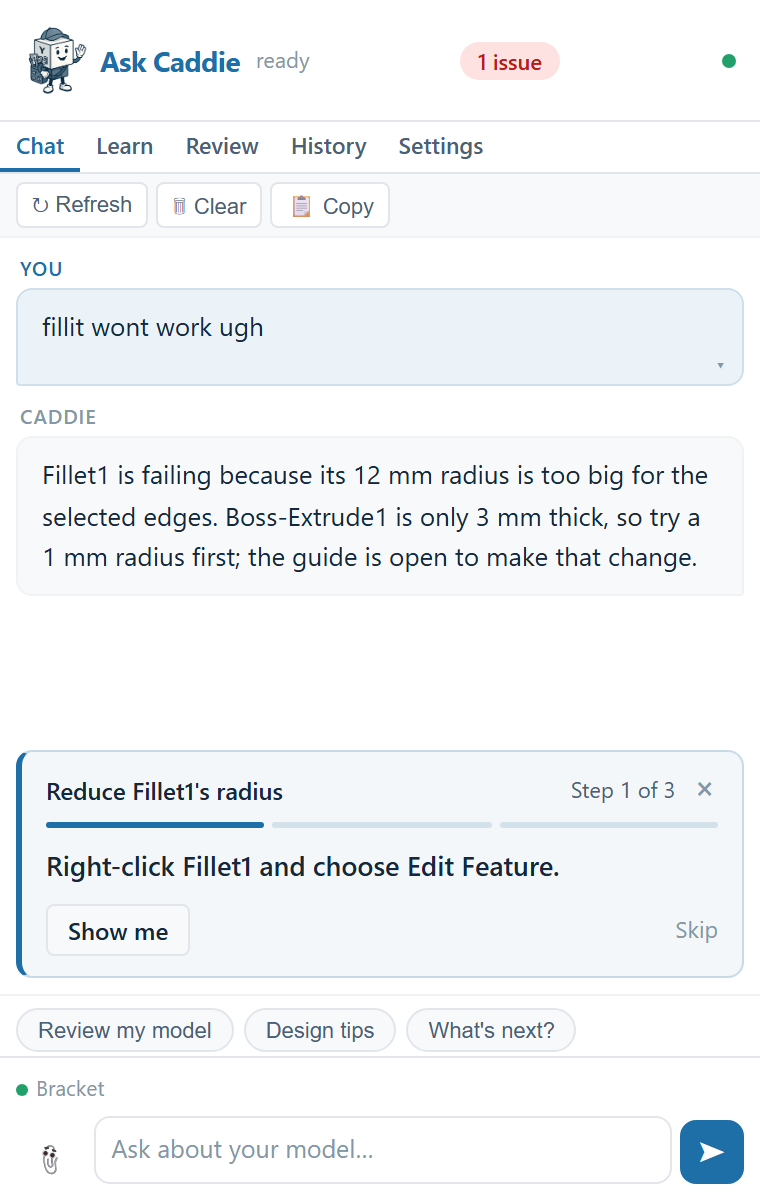
The tabs
| Tab | What it's for |
|---|---|
| Chat | Ask anything. Once you've started, the suggestions under the conversation change with the document: Fix 2 issues, Mass & CG, Rename features, Check mates, Drawing checklist and so on. Attach an image with the paperclip, or paste one. |
| Learn | Practice exams with checked answers, Learn by building (Caddie guides you through a part, click by click), and Quick quiz. See Practice for SOLIDWORKS certification. |
| Review | Check my model: a full check of the open model, with measured checks such as hole depths, holes near edges and thin walls, most important first. Each problem has Fix it, where Caddie proposes the change for you to approve, and Guide me, which starts a guide so you make the fix yourself. |
| History | Past conversations, kept on this PC. |
| Settings | Your name, how Caddie explains, how you work, notes on the open file, screenshots, saved conversations, and Copy a problem report. Changes save as you go. |
Tell Caddie how you work
How Caddie explains in Settings has two choices. Step by step explains why as well as what, says what terms like over-defined mean, and prefers guides so you make the clicks. Short and direct leads with the answer and the numbers, and offers to make fixes for you to approve. Either way, "walk me through it" or "just do it" gets you the other.
How you work in Settings holds your standards: the processes you make parts with, your drawing standard, general tolerances, the materials and stock you use, and your own design rules. Caddie follows them in every answer, they decide which measured checks run, and your rules win over general guidelines. For example: "Minimum wall 2 mm on machined parts. Name features by what they do."
Notes on this file holds facts the model can't show, such as what it mates with or who makes it. Caddie brings them up whenever that file is open. You can also just say "remember that this mates with the motor plate".
Projects keep files designed together. Click the project button next to New chat to start one; files you open while it's active join it. Under This project in Settings, say what it is and its requirements. Caddie keeps its own short record of what's been decided, which you can edit, and picks up the project's conversation when you come back.
Getting good answers
- Say the goal, not just the method. "This hole has to stay centered" gets a better answer than "add a midpoint".
- Select something first if you mean a particular face, edge or feature. Caddie sees the selection.
- Say "walk me through it" or "do it". The first starts a guide that highlights each click while you work; the second proposes a change for you to approve.
- Ask follow-ups. Caddie remembers the conversation.
- Check what matters. Caddie can be wrong. Treat numbers for a real design as a starting point and verify them.
Updates
When a new version is out, a bar at the top of the panel says so. Download it, close SOLIDWORKS and run the installer. Your settings and history carry over.
Uninstall
Open Windows Settings › Apps › Installed apps, find Ask Caddie (versions before 0.3.6 list it as Caddie for SOLIDWORKS) and click Uninstall. Saved conversations and settings stay in %AppData%\CaddieAddin until you delete that folder, or use Delete all saved conversations in Settings first.