Guide me, or do it for me
Ask Caddie can walk you through a task with highlights on screen while you make the clicks, or make the change itself after you approve it. You choose.
Guides: you do the work, Caddie highlights where to click
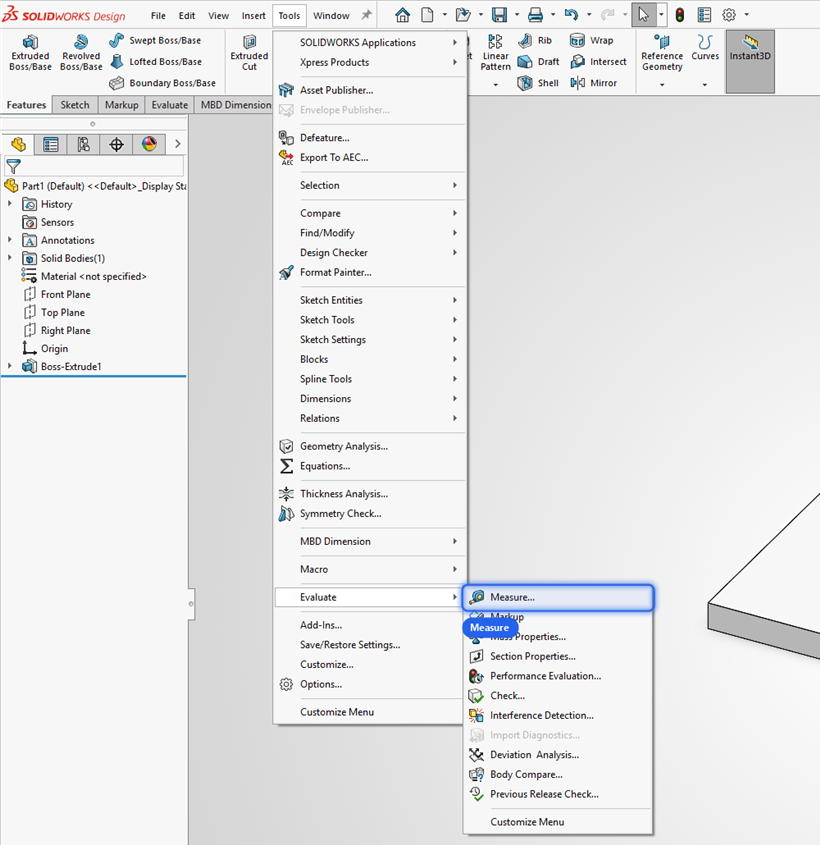
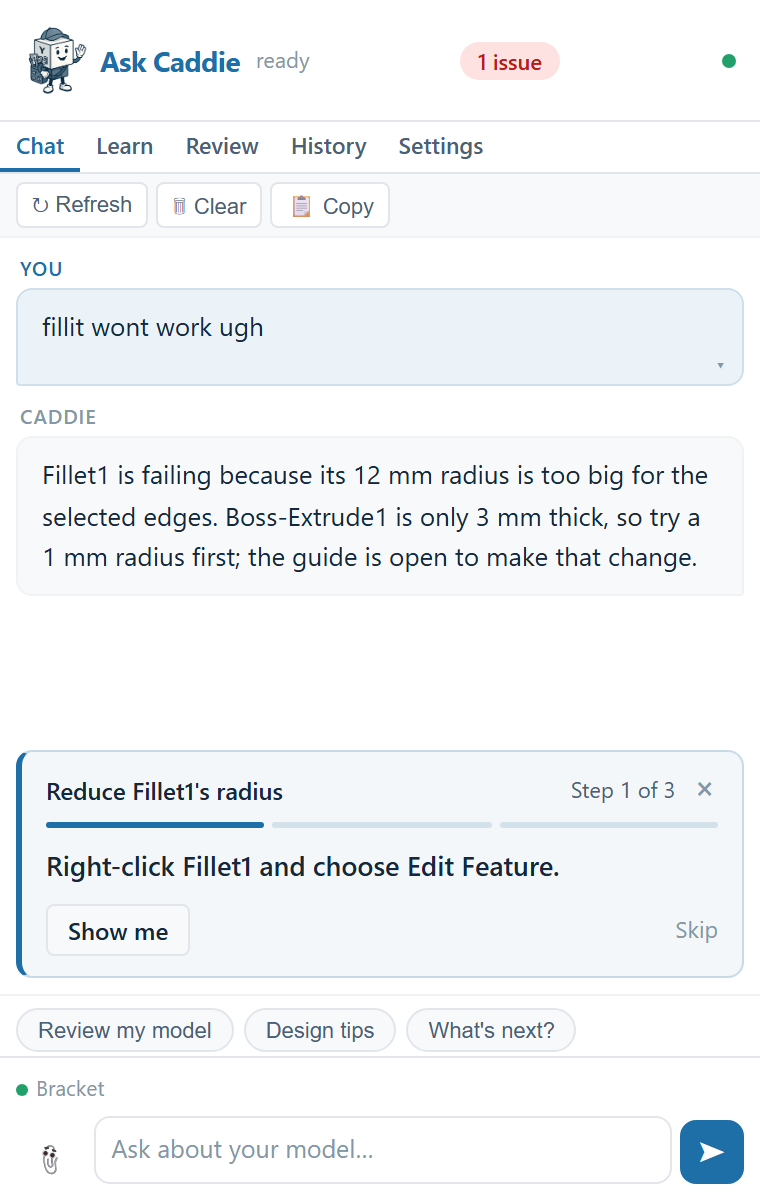
Ask how to do something, such as "How do I shell this part but leave the top face open?" or "Walk me through measuring the distance between these holes.", and a guide card appears above the chat box. Each step is highlighted on screen: a ribbon button, a menu item, a field in the PropertyManager or a feature in the FeatureManager tree. Caddie doesn't click anything; you do.
The guide card
| Highlight it | Highlights where to click for this step again, if the highlight has gone. |
| Open it | Opens the command for you, when the step starts one. |
| Do it for me | Makes this step's change, when it's one Caddie can make. |
| Done | For steps SOLIDWORKS can't confirm by itself. |
| Skip and × | Skip a step, or stop the guide. |
Most steps tick themselves off. When you open the Fillet command, or the error clears, the guide moves to the next step on its own.
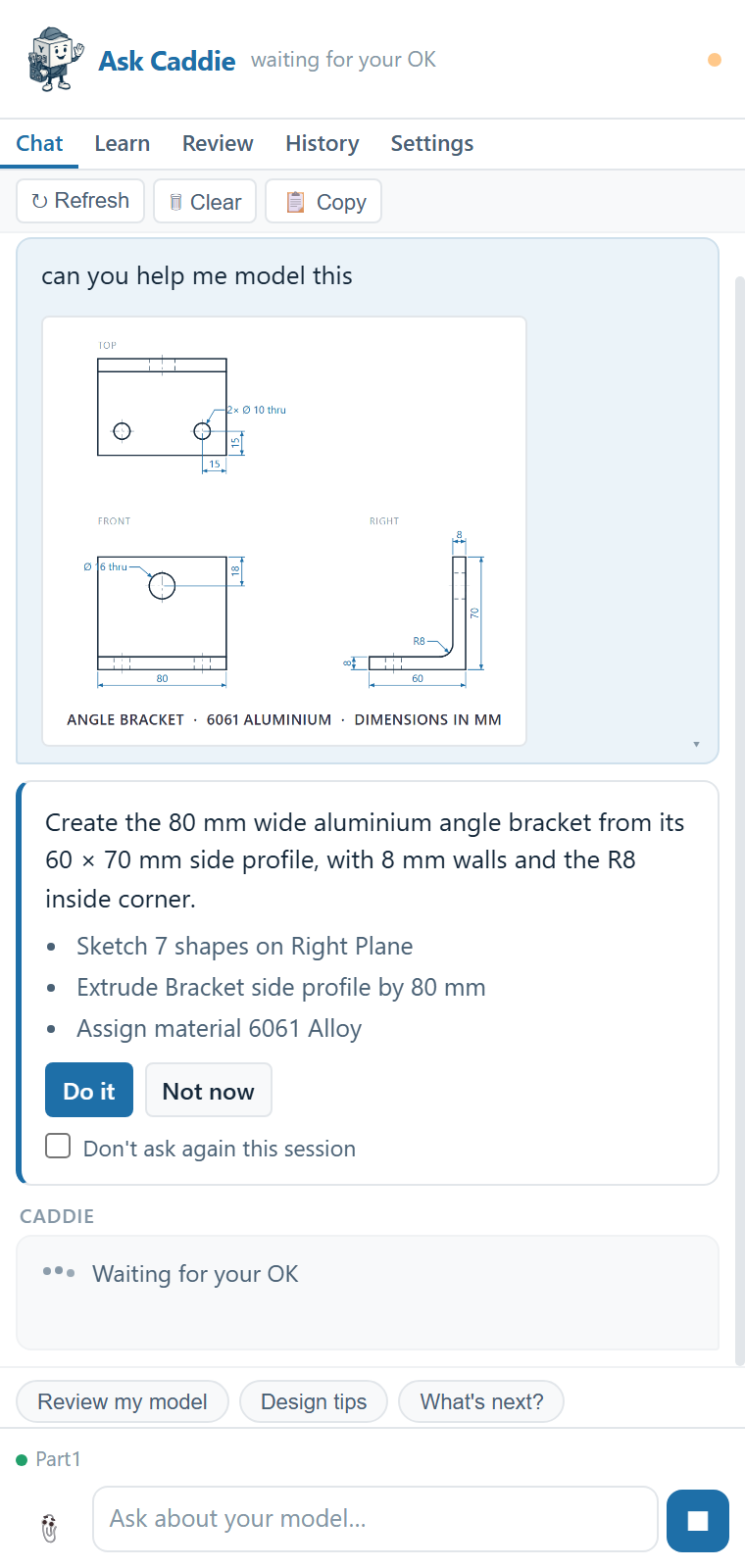
Changes: Caddie does it, after you say yes
When you ask Caddie to make something, or the fix is clear, it shows a card with a one-line summary and every change it will make. Nothing happens until you click Do it.
What Caddie can change
| Sketches | New sketches on a plane or a flat face, with lines, arcs, circles and rectangles. Open or close a sketch. |
| Features | Extrudes and cuts (blind, through all, mid-plane, both directions or from an offset), fillets, chamfers, shells, mirrors, and linear and circular patterns. |
| Edits | Change a dimension, make a dimension driven, rename, suppress or unsuppress, delete a feature, delete a sketch relation. |
| Properties | Material and custom properties. |
Undo
After a change, the card shows what happened and an Undo button. Undo reverts the whole set at once, including renames and materials. It works until you change the model yourself; after that, use Ctrl+Z in SOLIDWORKS. Deleted sketch relations can't be restored, so Caddie always asks before deleting one.
If something fails
The changes in one card are applied together. If one of them fails, Caddie puts everything back and tells you what went wrong.
Don't ask again
For routine work, tick Don't ask again this session. Caddie then makes changes without asking first, and still shows what it did. Deleting a feature or a relation always asks.
Which should I use?
- Learning SOLIDWORKS, or want to be faster at it: guides. You do the clicks, so it sticks.
- Know what you want and want it done: changes.
- Say which you'd like: "walk me through it" or "just do it".
How Caddie explains, in Settings, sets the default: Step by step leans on guides, Short and direct on changes. In the Review tab, every problem has its own Fix it button, where Caddie proposes the change, and Guide me button, where you make it with a guide.